DXF nesting software
Nest DXF files in the browser
DXF in, nested DXF out. Upload the file your CAD already produces, set sheet size and part spacing, and get a layout that packs the true outlines rather than bounding boxes. Nothing to install.
Free plan: unlimited nesting and re-nests, no part limit, no card. 5 project exports a month.
What survives the import
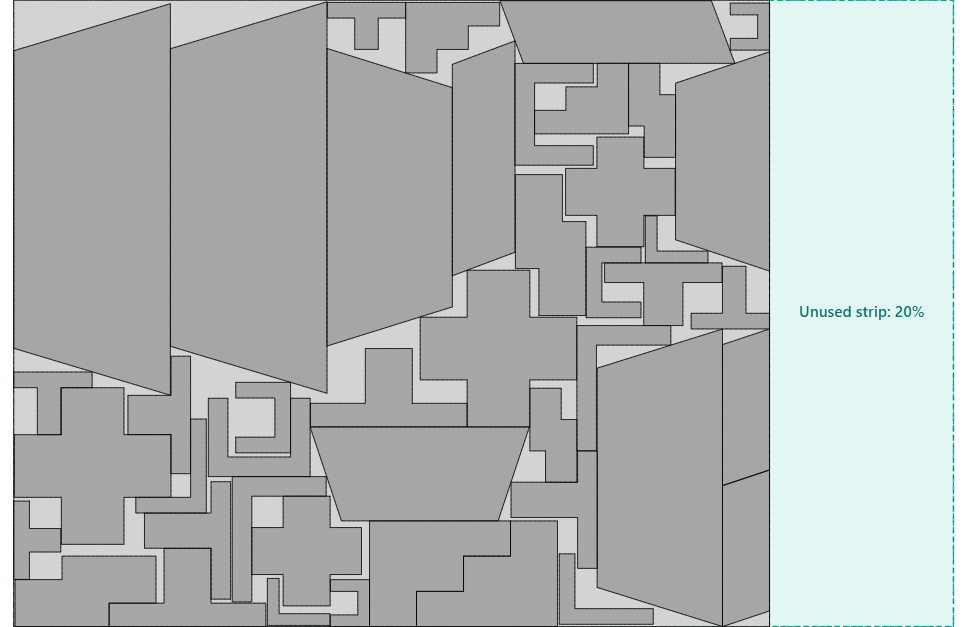
Most nesting complaints are really DXF complaints. Here is what happens to each entity type, including the one case where you get a better result by preparing the file first.
| Entity | What happens |
|---|---|
| LWPOLYLINE | The normal case. Closed polylines import as part outlines directly. |
| LINE | Imported. Loose line segments need to form a closed contour to become a part. |
| ARC / CIRCLE | Imported as true curves, not faceted approximations. |
| ELLIPSE | Imported. |
| SPLINE | Approximated internally to a polyline. For tight-tolerance curves, convert splines in CAD first so you control the tolerance. |
| INSERT / BLOCK | Expanded automatically, with position, rotation and scale applied. There is no need to explode blocks first. |
If a file misbehaves, the five failure modes worth knowing are open contours, a units mismatch, duplicate overlapping geometry, block references and splines. All five, with the fix for each, are in the DXF troubleshooting guide.
What DXF nesting software does with your file
DXF nesting software takes the flat parts your CAD exports and arranges them on a sheet so that as little material as possible is left over. Lapas does this in the browser. You upload the DXF, set the sheet size, the part spacing and a quantity for each part, and the layout comes back as a DXF you can open in your CAM. Nesting DXF files this way keeps the work in the format your cutting side already uses.
The settings you control per job
Every DXF nesting job has the same few decisions, and Lapas puts them in one place. Part spacing and the sheet border are set per job. Rotation is one setting per job: any angle, 90° steps (the default), grain direction that keeps parts at 0° and 180°, or keep as drawn. If you cut from several stocks, a job can use several sheet sizes, each with a quantity or unlimited, and spreads across as many sheets as it needs. Small parts go inside the holes of larger ones on their own, with the full spacing kept off the edge of the hole.
Layers matter too. Each DXF layer can be set to Cut, Engrave or Ignore, and Lapas remembers your choice for the next file. Engraving carries through to the export on its own layer.
Nesting DXF files that are not all the same
Real orders are mixed: a few large brackets, a handful of small clips, a plate with many holes. When you are nesting DXF files like these, you can keep a set of parts together on one sheet, cut certain parts first, or mark a part as stock so it only fills leftover space and never opens a new sheet. Units are read from the DXF header and shown as declared, and you can re-read a file as another unit if the header was wrong.
What you get back
The export is one DXF per sheet, zipped when there are several. Arcs and circles that came from your DXF are written back as true ARC and CIRCLE entities, not as many short segments, and an account set to inches gets an inch DXF. A PDF report with sheet count, utilization and a part list comes with it. Both are on the free plan, within its five project exports a month.
Which machines it suits
Lapas is DXF nesting software for the nesting step, not a replacement for your CAM. It suits shops cutting on fiber, CO₂ or diode lasers, plasma, waterjet, CNC routers and knife cutters, because all of them start from a flat DXF. Your CAM still adds lead-ins, kerf compensation and cut order. To check it on your own parts, nest a real file on the free plan, or follow the step-by-step walkthrough.
The round trip
- 1 Export from CAD
DXF out of Fusion 360, SolidWorks, FreeCAD, AutoCAD or Inkscape. Set units explicitly. Blocks do not need exploding.
- 2 Nest in the browser
Upload, set quantities, sheet size and part spacing, then watch parts place in real time.
- 3 Back into CAM
Export the nested DXF and open it in LightBurn, RDWorks or your plasma CAM to apply toolpaths and post.
Independently benchmarked
Measured against Deepnest, not just claimed
We ran Lapas Core v1.1 head to head against Deepnest on 37 nesting cases: same parts, same plates, same time budgets, then scored every result with an independent program that reads the output geometry. On the standard density tests Lapas left 13.9% of the plate as offcut against Deepnest's 26.7%, and on real jobs it fits the same parts on fewer plates. Fewer plates means lower material spend on every run.
Read the full benchmark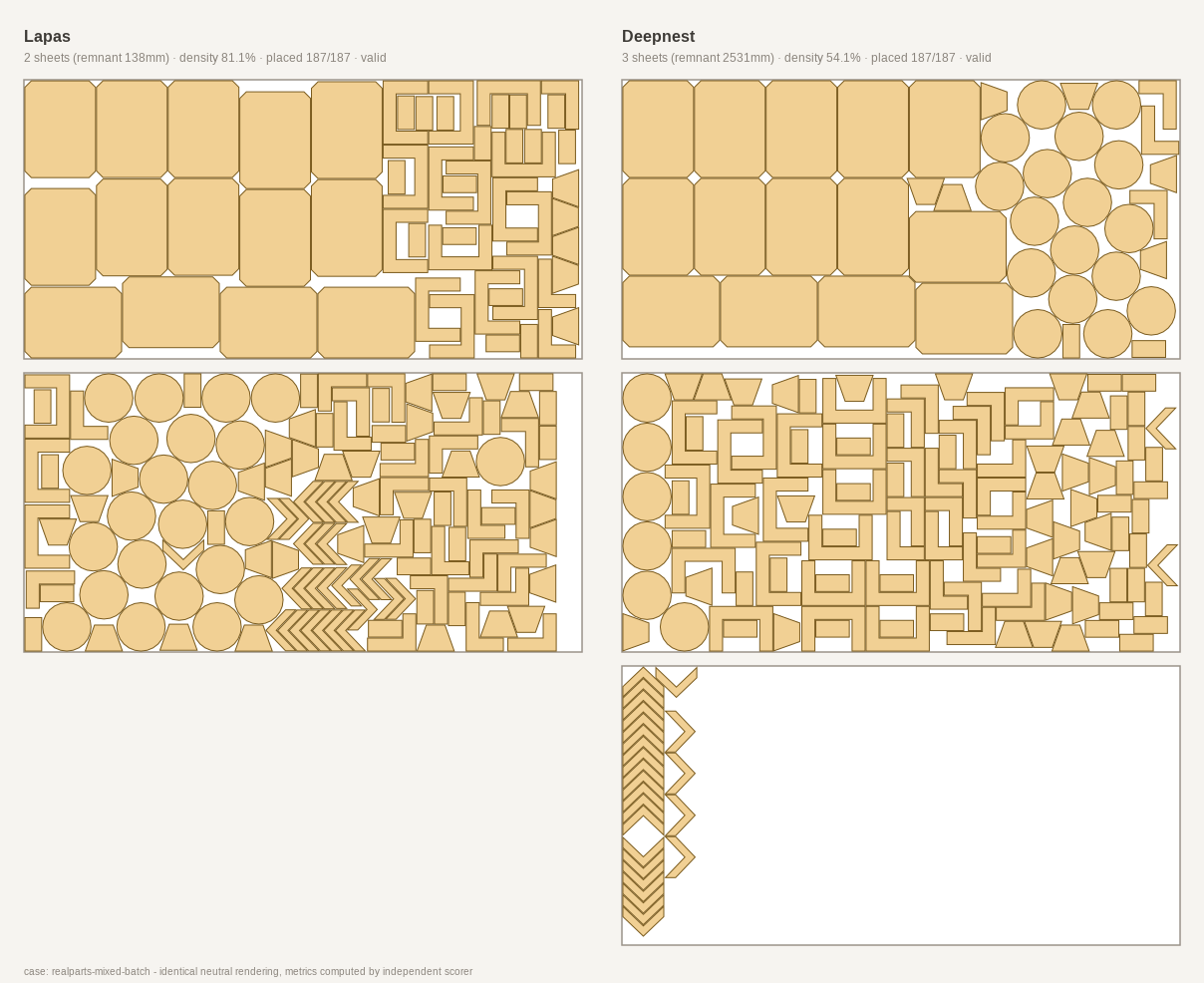
Same 187-part job: Lapas fits 2 plates (left); Deepnest needs 3 (right).
- 1.92x
- more of the plate thrown away by Deepnest: 26.7% wasted against our 13.9%
- 10 s
- beats Deepnest's best 5-minute nest, on every shape tested
- 3 plates
- saved across a 10-job batch, 25 against 28, never more
Common questions
Yes. Upload the DXF in the browser, set sheet size and part spacing, and the nested layout comes back as a DXF you can take into your CAM software. Nothing is installed and it works the same on Windows, macOS and Linux.
Usually open contours. A part needs a closed outline, and line segments that nearly touch but do not connect read as loose lines rather than a part. Join and close the outline in CAD (PEDIT and Join in AutoCAD) and re-export. Block references are not the cause in Lapas, because INSERT entities are expanded automatically. If the parts are there but at the wrong size, it is units: see the next question.
A units mismatch between the DXF header and what the nesting tool assumed, which is the inch-to-millimetre factor. Set units explicitly on export rather than relying on the default.
Arcs, circles and ellipses import as true curves. Splines are approximated internally to a polyline, which is fine for most work but means that on tight-tolerance curved parts you get more control by converting splines to polylines in your CAD tool first, where you set the tolerance yourself.
A DXF of the nested layout for your CAM step, plus a PDF report with sheet count, utilization and part placement for quoting. Both are on the free plan. G-code export exists in beta but has not been validated across controllers, so verify it before cutting.
On the Lapas free plan, yes: unlimited nesting and re-nesting, no cap on parts per job, and no credit card, so you see the full layout for every job free. Exporting is what is capped - 5 project exports a month in any format. Pro is $49 a month and removes the export cap.
Related: nesting software overview, nesting online with no install, and the step-by-step DXF walkthrough.
Don't take our word for it.
Upload one of your own DXF files and see the layout yourself. It's free and takes about two minutes.
On a phone? Book a 20-minute call and we nest your file with you on a screen share.
No credit card and nothing to install. We never share your uploaded files with third parties.
The call is free, takes 20 minutes and commits you to nothing.